A trainer that reads every set ProiOS 27
The AI trainer reads your log and proposes what you ask for: a complete program, your next loads or a swap between sets. You tap Apply to save it.
Six jobs for the trainer ProiOS 27
Each job starts with one message in your own words. A change to your training comes back as a proposal card.
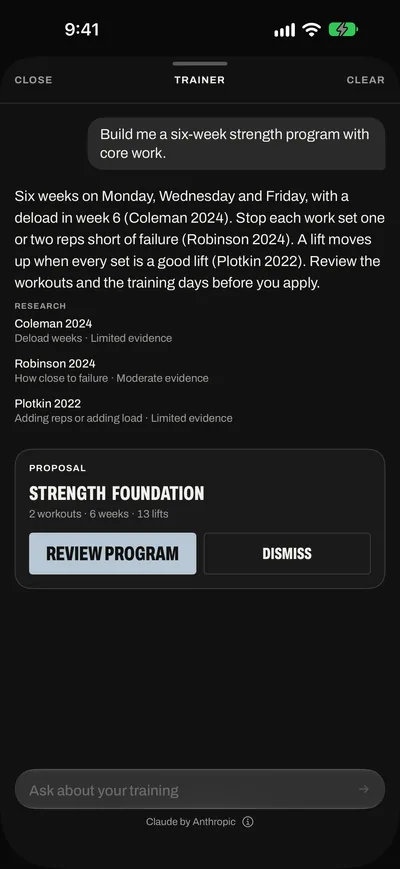
- Build a complete programGive it your goal, days a week, session length and gym. It starts from the best fit of the 21 programs and swaps the lifts you avoid. Then it proposes the whole training block on weekdays: the workouts, the start day, 1 to 16 weeks, and a deload week when the program has one. For a rolling cycle, it writes the workouts itself. Review program lets you edit every workout before you tap Apply program.
- Set your next targetsAfter you save a session, it reads every set and proposes each lift's next load and reps, with the reason on each line. The app can ask for you: it puts “Set my next targets for Lower A from the session I just saved (Thu 1 Oct).” in the chat. A squat at the top of its reps with RPE to spare can go up 10 to 20 lb.
- Change a session while you liftBetween sets, ask for a lighter day, a swap when the rack is taken, an added lift or a lift taken out. It changes only the sets you have not logged. Ask for the change for today only, or for the workout too.
- Change workouts and blocksSwap a lift in the program, or change its sets, reps, rest, warm-ups and target RPE. Move a missed session, add a deload week, change a block's dates or days, or make it a rolling cycle, such as 3 on and 1 off for 8 cycles. It renames, moves, copies and deletes workouts, and renames and deletes folders. It also changes your units, rest, bar and plates, and logs a body measurement.
- Explain your trainingAsk why your bench held, how the week went, which lifts are going up or where your records stand. It reads your sessions, records, weekly totals and sets per muscle, and it answers with your own numbers and dates.
- Remember youIt keeps a rules file on you: goals, preferences, limits and a line per lift. It follows the file in every answer and writes its own note on a lift after a session. You can edit the rules file and read its lift notes, and you write lift notes of your own. When you change the file, the trainer follows your version.
Every recommendation names its research, for example (Schoenfeld 2017), and you can open the paper. With Claude, it can also search the web and list its sources. It answers how-to questions about the Block app from the app's help. It gives no medical advice.
Ask it as you ask a coach
Type in your own words. Each request below shows what comes back.
Build me a 4‑day program for a 500 lb deadlift in 16 weeks.
It starts from a 4‑day strength program and sets it to 16 weeks with a deload week. Review program opens it, and Apply program saves the training block.
Set my next targets for Lower A.
It reads the last Lower A session set by set. The card has one line per lift, with the change and its reason: Back Squat 3 × 8 at 185 → 3 × 8 at 195, after 3 good lifts at RPE 7. Apply workout, in its review, saves them.
Why did my bench hold?
It names the set that missed and the lamp that went red, with the load and the reps. Nothing changes.
I'm about to lift Upper B. I slept 4 hours, so go lighter today.
A card, Upper B: start now, lists every lift at today's loads. Start session opens it. The workout keeps its own numbers.
The leg press is taken. Swap it for today.
In a session, it proposes a lift for the same sets, reps, rest and target RPE. Apply changes the session. The sets you logged stay as they are.
Replace skull crushers today and in the program.
In a session: one card in two parts, The workout and Today's session. One Apply changes both.
I missed Wednesday. Where does Lower B go?
In a block with training days, a card, Move Lower B, puts it on a free day left that week. Apply moves it.
Make Block 2 a rolling cycle: 3 on, 1 off, 8 cycles.
A card, Change Block 2, shows the new rhythm. After Apply, each session is due from your last one, so a break does not use up the block.
How many sets did my chest get each week this month?
It adds up your working sets per muscle, week by week, and answers with the numbers.
Switch me to kg. My gym has a 20 kg bar and plates down to 1.25.
A card, Settings, lists the unit, the bar and the plates. After Apply, every load it proposes uses them.
Open the trainer ProiOS 27
The same chat opens from each place below. Each place offers its own first questions.
You need Block Pro and iOS 27. Without Pro, a trainer button opens the plans. On iOS 26 and earlier, the Ask trainer buttons do not show, and the Trainer screen, under Next targets on the Plan tab, says Needs iOS 27.
On Today
Tap Ask trainer, beside Start session at the bottom of Today. With no workouts yet, Today shows Build with trainer.
On the Plan tab
Tap Ask trainer at the top of the Plan tab. Next targets, beside it, opens the Trainer screen: Ask the trainer, About you, Programs, Lamps and next targets, and your assistants.
In Progress or a session
Tap the trainer button in the top row. It is a speech bubble with three dots. In a session, the trainer sees every set you logged so far.
On other screens
A program's page has Adjust with the trainer. A finished block's page has Plan next block. The saved scoresheet can show Ask the trainer with the next targets.
In Settings
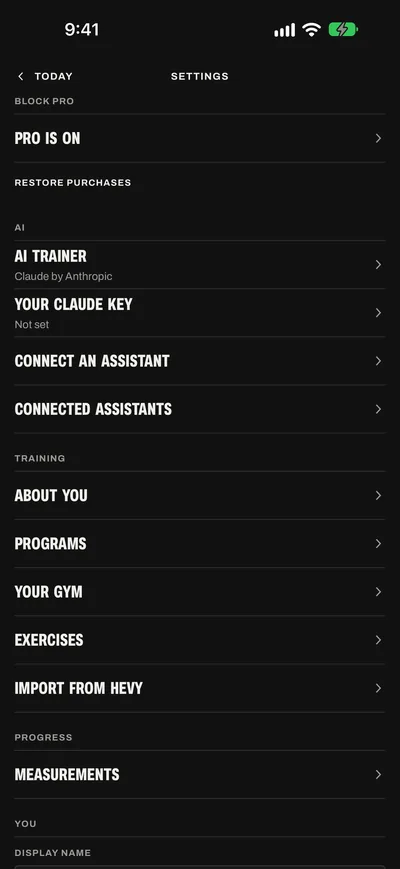
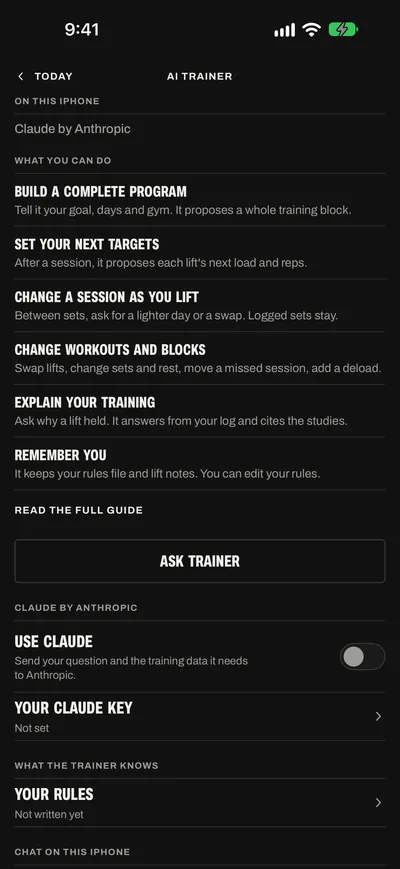
Tap the gear on Today to open Settings. The AI group is under Block Pro, at the top. Tap AI trainer. This screen shows who answers on this iPhone and the messages left this month. It also has What you can do, Ask trainer, Your rules and Clear chat.
Build your first program ProiOS 27
Start with About you. The trainer and Programs plan from it.
Fill in About you
Open Settings and tap About you. Choose your Goal and your Training experience. Set Your week: the days and the minutes. Choose Where you train.
Under Limits and likes, add the lifts you want and the lifts you avoid. Tap Save.
Ask for the program
With no workouts yet, tap Build with trainer on Today or the Plan tab. In the chat, tap Build my complete program.
Or type your own request, for example “Build me a 4‑day upper/lower program, 60 minutes, full gym.”
Answer its questions
It asks a short question when it does not know your goal or your days a week. For other facts that are missing, it uses a default, such as a full gym, and says what it assumed.
With Claude through Block, Claude Sonnet 5 builds the program. Your answers to its questions stay with Sonnet 5 until the proposal comes.
Read the card
It starts from the best fit of the 21 programs. It swaps the lifts you avoid or cannot load. It can also drop lifts or move a workout to another day.
Programs run on weekdays. For a rolling cycle, such as 3 on and 1 off, ask for one: the trainer then writes the workouts itself, or a block change makes your block rolling.
The card has the program's name, for example Start Strength Upper Lower 4. It lists the start day, the weeks, the deload week, the training days and each workout. A program has no loads: your first session sets them.
Tap Review program
- Change the program's name, Starts, the weeks and the Deload week.
- Pick the workout for each weekday, or Rest. A rolling block that the trainer wrote shows its days on and off and its cycles instead.
- Tap a workout to change its lifts and sets.
- Swipe left on a workout to remove it. Tap Add workout for a new one, or Reorder to drag them.
Keep draft or Apply program
Keep draft, at the top of the review, keeps your edits on the card in the chat. It saves nothing to your workouts.
Apply program saves the training block. Its workouts show on the Plan tab, ready to start. To drop the proposal, tap Dismiss on the card.
Next targets after a session ProiOS 27
After every session, the app works out each lift's call: more load, more reps, hold or reset. The trainer reads the same session. It can take a bigger or a smaller step than the call, or hold a lift, and it gives the reason.
Finish and save
Tap Finish in the session's top row. On the scoresheet, tap Save session. If some sets are not logged, the button reads Save completed sets.
Let the trainer ask
The saved scoresheet has a panel for the trainer's next targets. When the trainer can answer at once, the app sends this question in the chat for you: “Set my next targets for Lower A from the session I just saved (Thu 1 Oct).”
It can answer at once when you saved your own Claude key or already allowed Claude. It can also answer at once where Apple's model answers.
With Claude through Block, this question counts as one of your messages, and Claude Sonnet 5 answers it. The card then shows on the scoresheet.
Otherwise the panel lists the app's calls and Ask the trainer. Tap it to open the chat with the same question. The card then comes in the chat, with Review workout.
Read each line
Each line shows one lift's change and its reason, for example Back Squat 3 × 8 at 185 → 3 × 8 at 195, after 3 good lifts at RPE 7.
It starts from the app's call for each lift: the lift's step, 10 lb or 5 kg for a big lower-body lift and 5 lb or 2.5 kg for any other. It gives a reason when its numbers differ: a lift at the top of its reps at an RPE well under its target can take a bigger jump, and a cable stack at its last plate holds. The app accepts the card only when it covers each lift whose call moves it and is not in the workout yet.
When it keeps a lift where it is, it gives a reason. That hold saves at once, before you tap anything.
Apply, Edit, Not now or Talk it through
When the app asked for you, the card on the scoresheet has four buttons:
- Apply saves the new targets to the workout.
- Edit opens the workout with the changes, so you can adjust them first.
- Not now closes the card. The next session starts at the app's calls. A lift the trainer kept stays where it is.
- Talk it through opens the chat.
Keep a lift where it is
On Today, long press the lift. Choose its Keep action, such as Keep at 380 lb × 10 reps. Or tell the trainer why, for example “The leg press sled ends at 900 lb.”
During a session ProiOS 27
In a session, the trainer reads every set you logged, with its lamps. It answers for the set in front of you first.
Open the chat
Tap the trainer button in the session's top row, beside Finish. The line under the message field shows In session and the workout's name.
Ask about your next set
Ask “What should I lift on my next set?” or “That set was too heavy. What now?” It answers in a sentence or two, from the sets you logged and your history.
Ask for a change
It can make four kinds of change:
- The load or the reps of the sets you have not logged.
- A lift swapped for another.
- A lift added.
- A lift taken out.
A swap keeps the sets, reps, rest and target RPE. The old lift's loads go, unless the trainer gives new ones.
Choose where the change goes
- Today: the lamps judge today's numbers. The workout keeps its own.
- The workout: the change is saved to the workout from now on. This session stays as it is.
- Both: one card with The workout and Today's session, and one Apply.
When your words do not say which, it asks you.
Tap Apply
The session changes at once. The trainer never changes a set you logged. A lift with a logged set stays in the session. To fix a logged set, open it and change it yourself.
Or start the session from the chat
Before you lift, tell it “I'm about to lift Upper B, lighter today.” The card, Upper B: start now, lists every lift as you will lift it. Tap Start session to open the session.
To move the workout on first, say “I'm about to lift Upper B. Move it on first.” Start session on that card saves the new loads to the workout, then opens the session.
Change your plan ProiOS 27
Ask for all your changes in one message. One request gets one card with one Apply, even across several workouts.
-
Change a workout
Ask “In Upper A, swap barbell rows for chest-supported rows, 3 × 10–12.” It can change sets, reps, rep ranges, rest, warm-ups and target RPE. It can also make a stretch a prep lift, which is logged and not judged.
A card for one workout shows Review workout. In the review, tap Apply workout. A card for several workouts has one Apply.
At Apply, the app checks that the workout did not change after the proposal. If it did, the card tells you to ask the trainer again. A card for a block or a folder does the same check.
-
Move a missed session
In a block with training days, tell it “I missed Wednesday.” The card, Move Lower B, moves the session to a free day left that week, or skips it this week.
A rolling block needs no move. The next session is due at once.
-
Add a deload or change the block
Ask “Make week 6 a deload” or “Start Block 2 next Monday.” The card is named for the block, for example Change Block 2. It can change the name, the start day, the length, the training days or the deload week.
In a deload week, loads drop to about 85%, with fewer sets and reps. Start saves the move earned before the deload. The deload's loads are for that week only.
-
Make a block a rolling cycle
Ask “Make Block 2 a rolling cycle: 3 on, 1 off, 8 cycles.” The workouts then run in their order, not on weekdays. Each session is due from your last one, so a break does not use up the block.
-
Organize workouts and folders
Ask it to rename, move, copy or delete a workout, or to rename or delete a folder. It proposes a delete only when you ask for one. A deleted workout's sessions stay in Progress.
-
Change settings or log a measurement
Ask “Set my default rest to 2:30” or “I weigh 181.4 today.” The Settings card changes units, default rest, bar and plates. The measurement card logs the numbers you give it for that day.
Your rules and lift notes ProiOS 27
The trainer keeps a rules file on you and a note on each lift. You can read and edit the rules file. You can read its lift notes and write your own.
-
Open Your rules
Open Settings and tap AI trainer. Under What the trainer knows, tap Your rules. The trainer writes the file under four headings, Goals, Preferences, Limits and Lifts, with one point on each line.
-
Let the trainer write the first file
After you save About you or import from Hevy, the trainer writes the file if you have none yet and it can answer at once. Otherwise, Your rules shows Ask the trainer to write it.
It writes the file from About you and your history. With Claude through Block, writing the file counts as a trainer message.
-
Edit it
Type your changes. Tap Save. The trainer reads the file in every answer and follows your version.
## Goals - 500 lb deadlift by March ## Preferences - Sessions under 70 minutes ## Lifts - Leg press: the sled ends at 900 lb -
Tell it in the chat
Say “No barbell back squats. Use the safety bar.” It rewrites the file at once, with no card, and says in a line what it saved.
The first time it writes warm-ups for you, it saves its warm-up rule under Preferences. Change the rule there, and it follows your rule.
-
Read the lift notes
In a session, tap NOTES under a lift's name. The notes open in parts:
- Today: the app's call for the lift and the workout's note.
- Trainer: its note on the lift, such as a cue or what to watch. You can read it. To change it, tell the trainer.
- Yours: your own note, such as seat height or grip. Type it in Single lift. It saves when you leave the field.
The trainer reads your note when it is about the question.
Why it says what it says
Each recommendation names its reason and its source. You can open the paper behind it.
The trainer cites a research card in brackets after each point, for example (Schoenfeld 2017). The Block app has 37 research cards. Each card gives one finding in plain words and its evidence level, with each source's DOI.
Under the answer, Research lists each paper with its topic and evidence level. Tap a paper to open it at doi.org. Two cards, Warm-up sets and Soreness and pain, have no study behind them. They show as Coaching practice.
A proposal of new loads, a new workout, a block or a session with new numbers must name its research cards, or the app refuses it. When a point comes from somewhere else, the trainer says so: the app's rulebook, your sessions, your rules file or your own request. The trainer is told to cite only these cards, never a study from memory.
With Claude, the trainer can search the web for facts the app does not have, such as a competition's rules or a program you name. While it searches, a line reads Searching the web. Sources, under the answer, lists each page it cites.
For a question about how to use the Block app, it answers from the app's help. It names the buttons as the app shows them.
Can my bench go up next time?
Bench Press moved well last time: every set was a good lift at or under its target RPE, so the load takes its next step (Plotkin 2022). I propose 190 for the next Upper A.
Plotkin 2022Adding reps or adding load. Limited evidence.
5 lifts, 16 sets
- Bench Press: 3 × 8 at 185 → 3 × 8 at 190
Who answers, and the monthly limit ProiOS 27
The trainer uses the first of these that can answer. The line under the message field names it.
| Who answers, in order | Model | Limit | Cost |
|---|---|---|---|
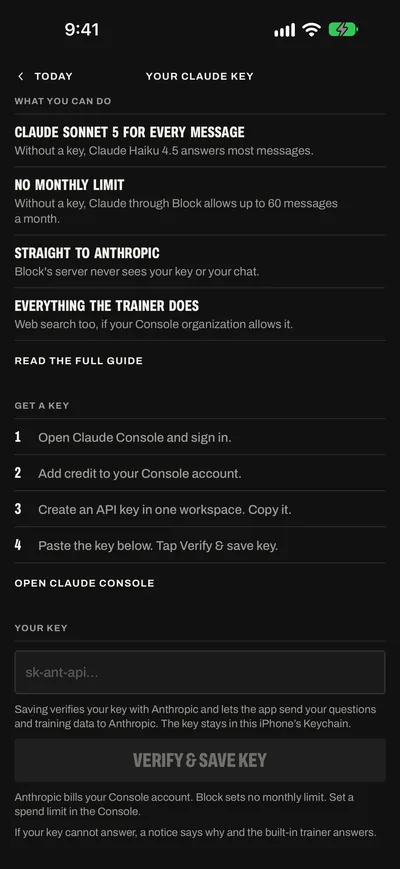
| Your own Claude key | Claude Sonnet 5 for every message | No monthly limit from Block | Anthropic bills your Claude Console account for each use. Set up your key |
| Apple's model on Private Cloud Compute | Apple's model, on iPhones with Apple Intelligence | No message count | Part of Block Pro |
| Claude through Block | Claude Haiku 4.5 for most messages. Claude Sonnet 5 to build a program or a block, and for the two questions the app sends for you: your next targets after a session and your first rules file. | Up to 60 messages a month, within a monthly cost limit. A long build uses more of it. Tool steps in one message do not count. | Part of Block Pro |
Before your first question goes to Claude through Block, a sheet asks Send to Claude? It lists what is sent. Allow sends the question. Not now sends nothing.
The line under the message field shows who answers and the messages left, for example Claude by Anthropic with 42 messages left. With your own key, it shows Claude Sonnet 5 and your key. Tap the line for About the trainer, with the model and the messages left until they renew. The count starts again on the first of each month (UTC).
A question you type yourself, such as “Set my next targets for Lower A”, goes to Claude Haiku 4.5. Only the question the app sends for you goes to Claude Sonnet 5.
To take the permission back, turn off Use Claude in Settings > AI trainer.
When your own key cannot answer, for example with no credit, a note says why, and the built-in trainer answers that question. With no connection, nothing answers.
Where your data goes
To answer, the trainer reads your training data in the app: sessions, workouts, loads, reps, RPE, your block, your gym, About you (with your injuries, limits and notes), your rules file, lift notes and body measurements.
| When this answers | What is sent | Where it is kept |
|---|---|---|
| Your own Claude key | Your question and the training data the answer needs, from your iPhone to Anthropic, with your key. | Under your own agreement with Anthropic. Block's server never sees the key or the chat. The key stays in this iPhone's Keychain. |
| Apple's model on Private Cloud Compute | Your question and the training data the answer needs. | Nowhere. Apple uses the request to answer and does not store it. |
| Claude through Block | Your question and the training data the answer needs, through Block's server. Not your name or your email. | Anthropic deletes it within 30 days, unless it must keep it longer to enforce its usage policy or to obey the law. It does not train its models on it. Block's server counts the messages and does not store them. |
The chat stays on this iPhone, for your account. Your rules file and lift notes are saved in your Block account with your training data.
The privacy policy has the details.
Limits and questions
What do I need?
Block Pro and iOS 27. Without Pro, a trainer button opens the plans. On iOS 26 and earlier, the app shows Needs iOS 27 for the trainer, and the app's next targets still work with Pro. Block Pro is $4.99 a month, or $39.99 a year with a one-week free trial for new subscribers.
Does it give medical advice?
No. For soreness or a tweak, it can propose lighter loads or a lift that avoids the painful movement. For an injury, or pain that is sharp or that lasts, it tells you to stop that movement and see a doctor or a physical therapist. It keeps to your training and the app.
Does anything change without Apply?
Changes to your workouts, blocks, settings and About you wait for Apply. Four things save at once, with no card: your rules file, its note on a lift, a hold that keeps a lift where it is, and feedback you ask it to send.
Why did it stop with Try again?
An answer that runs past its length limit stops, and the chat shows none of it. Tap Try again, or ask for one part at a time.
What do Not answered and Chat status mean?
Not answered, under your question, means it was not delivered. The Chat status panel under it gives the next step: Try again or Edit question after a connection or model failure, Review permission when Claude is not allowed yet, Check access for a Pro problem, Check messages when this month's messages are used up. A retry sends the same question again. It does not post a copy.
Why does it say Chat paused?
Pro access or this month's messages stopped the chat. The monthly cost limit stops it the same way. Earlier messages stay readable. Check access asks the server about Pro again, and Check messages asks about the messages left. Neither sends your question. Send it again when access is back.
How do I clear the chat?
Tap Clear at the top of the chat, or Clear chat in Settings > AI trainer. It removes the chat from this iPhone. Changes you applied stay.
Where is the chat kept?
On this iPhone, for your account. It stays when you sign out. Another iPhone does not get it. Deleting your account deletes it.
Does it need a connection?
Yes. With no connection, nothing answers, and your question stays in the chat. Tap Try again when you are back online.
Can I tell the team something?
Yes. Tell the trainer what broke or what you want, in your own words. It sends it to the team, and the chat says Feedback sent.
Other ways to use AI with your log
The AI trainer and connected assistants are part of Block Pro. Your own Claude key works with the trainer.
- Connect an assistantUse Claude or Gemini outside the app. Sign in once, and the assistant reads your log and saves workouts and training blocks in the Block app.
- Your Claude keySave an Anthropic API key. Then Claude Sonnet 5 answers every message on your own account, with no monthly limit from Block.